It has been a month since our new Employers Council Member Central platform launched, and we are excited to see members engaging with the Community and using our resources. Here are a few tips to enhance your experience on Member Central.
Attend free training
Learn tips and get an introduction to Member Central at a free session on December 1. Register here.
Resources organized by topic
From the Member Central home page, click Resources and select the topic that matches your need. Once you open a topic, our libraries allow you to drill down to view all the resources available, including whitepapers, checklists, policies, forms, and more.
Topics are designed to be user-friendly. For example, “Paying Employees” covers all aspects of paying an employee, like compensation planning, garnishments, overtime, pay equity, and state wage laws. “Leaves” encompasses all types of leaves, both mandatory and those offered by an employer. Click here to view our Topical Resource Guide.
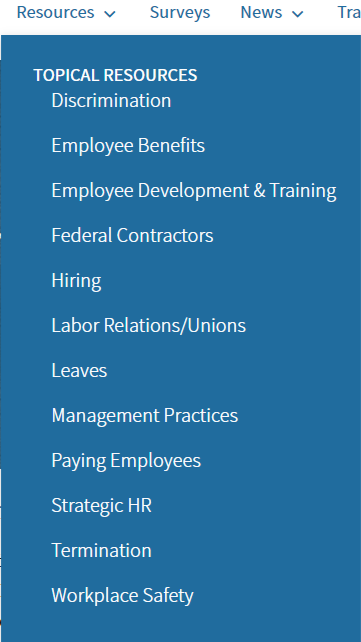
How content is organized
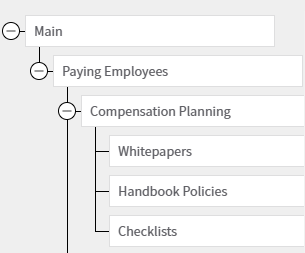
Under each main topic, you will find all the resources available. So, instead of having to know if you need a whitepaper, sample policy, a checklist, or form, you now see them all together. Below, you see that Compensation Planning is under Paying Employees, and we offer whitepapers, policies, and checklists.
Sample forms are typically attached to the most relevant law. For example, sample FMLA forms are attached to the law of FMLA. Under Resources, the Topical Resource of Leaves houses FMLA content, including sample FMLA notices and forms.
Policies for employee handbooks
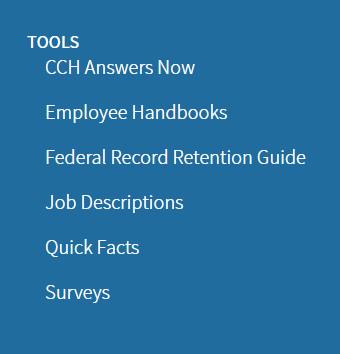
In addition to finding policies by topic as outlined above, you can also view all handbook resources in one place. Click Resources; under Tools, look for Employee Handbooks; click to open folders that contain sample policies, guidance, and employee handbooks for various states.
Create job descriptions
Thousands of sample job descriptions may be accessed through Member Central.
- Click here and follow the prompts to register for CCH.
- Once CCH Answers opens, click on “Job Descriptions” under Tools. Follow the prompts to register for JDXchange.
- Once the JDX tab opens, review the bullets for sample job descriptions you may download and customize.
- Click “Need Help” for a video that provides an excellent overview of using the job description tool.
Enhanced Search
Find content by entering your term in the search box and narrow your results using the filters on the left. Use quotation marks for specific phrases to improve search results. For example, entering “fitness for duty” in the search bar narrows the results to only documents that contain that complete phrase.
For help using Member Central, call us at 800-884-1328.